
How to turn table images into editable Excel
Choose a clear source image, review the extracted cells, then export a workbook you can edit. All supported formats use the same Screenshot to Excel workspace.
Upload an image and start →Which image format should I use?
| Format | Useful for | What to check |
|---|---|---|
| PNG | Screenshots with sharp text and grid lines | Small text, cropped headers and missing rows |
| JPG / JPEG | Photographed or scanned tables | Compression blur, shadows and perspective |
| WebP | Table images saved from websites | Use the original resolution rather than a thumbnail |
The workspace accepts PNG, JPG and WebP, up to 10 MB per image. Changing a file extension does not convert its format or restore lost detail.
Convert, review, export
- Crop out menus and unrelated text while keeping the whole table and its headers.
- Upload or paste the image in the main workspace, then start recognition.
- Compare the preview with the source. Correct numbers, dates and blank cells; merge or split cells when the layout needs adjustment.
- Download XLSX for an editable workbook, or CSV for plain rows to import elsewhere. CSV cannot preserve merged-cell layout.
A sample you can try
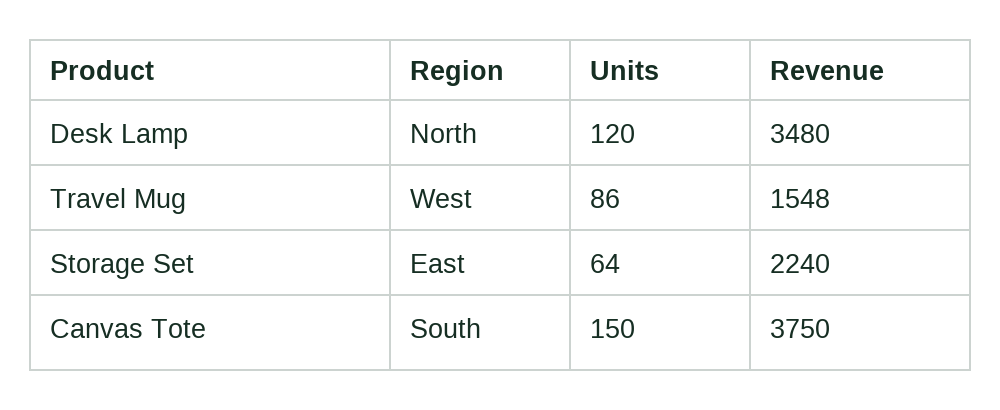
This is our demonstration input, not a published accuracy benchmark. In the workspace, choose Try an example to recognize it and inspect the actual result. Starting the example uses an attempt or account credit under the same rules as an uploaded image.
Try the sample in the workspace →One tool, with free and paid usage
Single mode has a limited daily free allowance for visitors. Signed-in conversion uses account credits. Batch requires paid account credits and supports a queue of up to 20 images. Editing and exports cost no extra credits.
Compare plans · Read the JPG photo guide · Full product guide